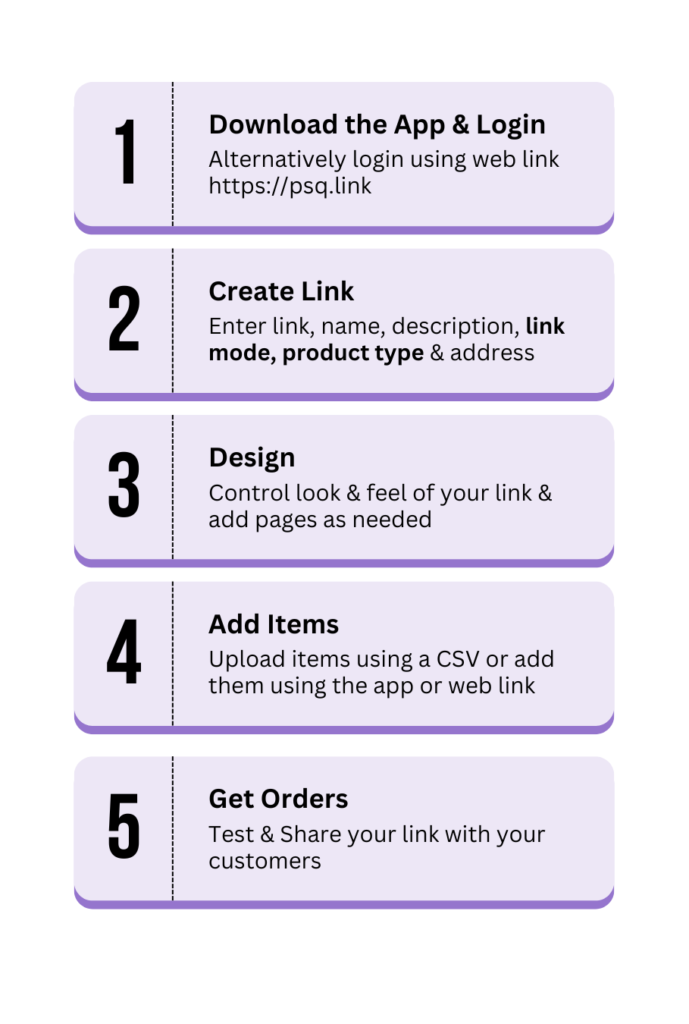
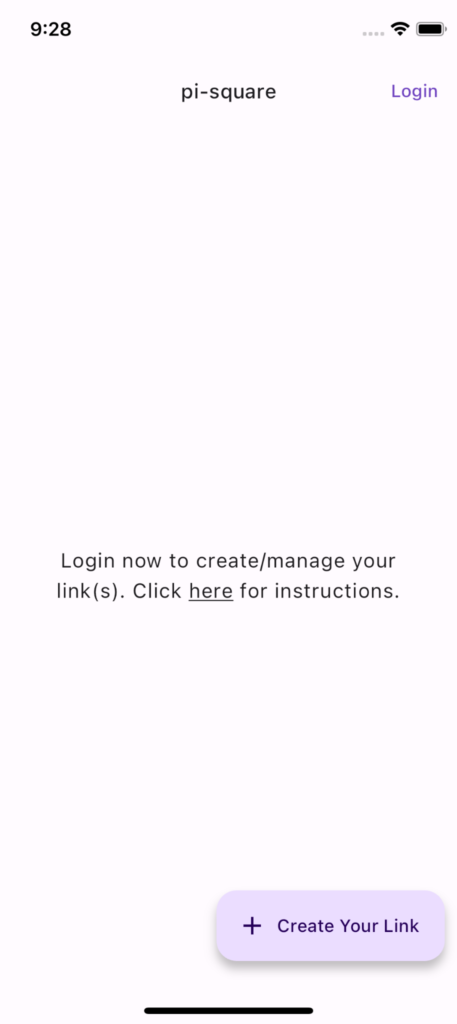
Download the mobile app or use our web app to create your link. (Your customers do not need to download the app for purchase) If you prefer using a desktop or web app you can use https://psq.link to create/manage your link.
Login using your phone number and name. OTP verification will be done for the phone number.
2. Create Link
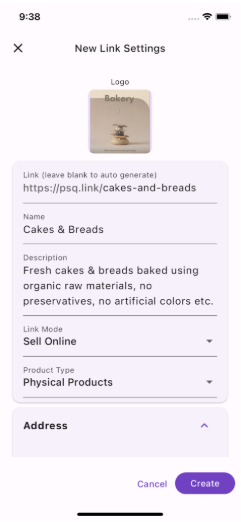
Follow the instructions below to create your online link.
Logo: Provide an image/logo of your store/booking link/service.
Link: link is of the form (https://psq.link/<link_name>). You can customize your link. You can leave this blank to let it auto generate and change later. You can only use characters, numbers, -, _ and . in the link. No special characters or white space is allowed.
Name: Enter the name of your store/booking link/service.
Description: Provide the description of your store/boo/service. Add delivery, payment, return policies etc. in description as applicable.
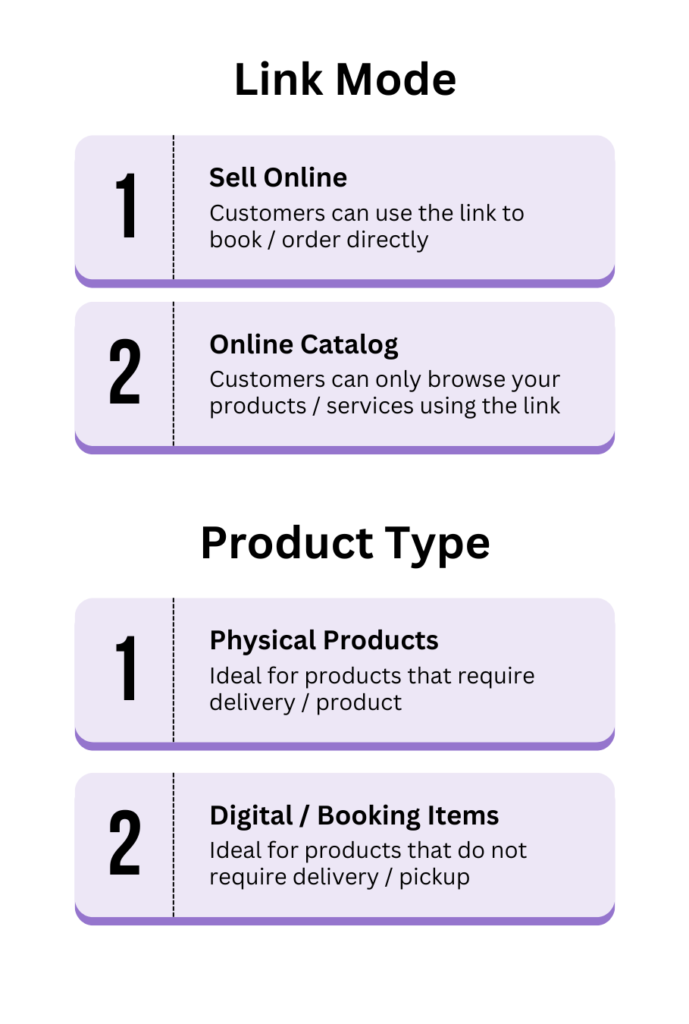
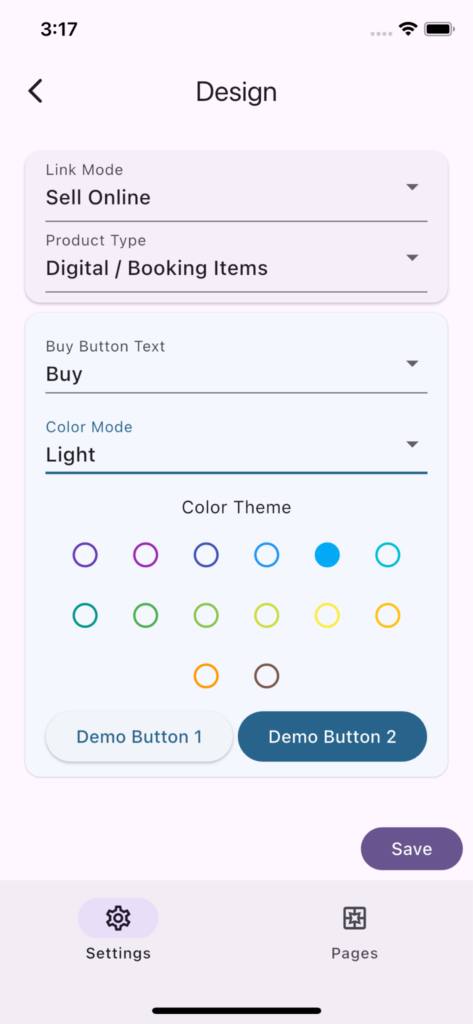
Link Mode:
Sell Online: Customers can place order directly.
Online Catalog: Customers can browse your products, services or digital goods but cannot place orders directly.
Product Type:
Physical Products: Products that required delivery / pickup
Digital / Booking Items: Ideal for products like event tickets, stalls, services, digital goods, that do not required delivery / pickup
Address: Enter address of your store/booking link or service location. It can also be home or office address.
Tap/Click on ‘Create’
You can update the remaining settings (pickup, delivery, payment, discovery etc.) later, refer here.
3. Design
You can click on designoption in the drop down menu in top right corner to seedesign screen.
More details about the design options can be found here.
4. Add Items
You can upload items in CSV format as explained here or follow the steps below:
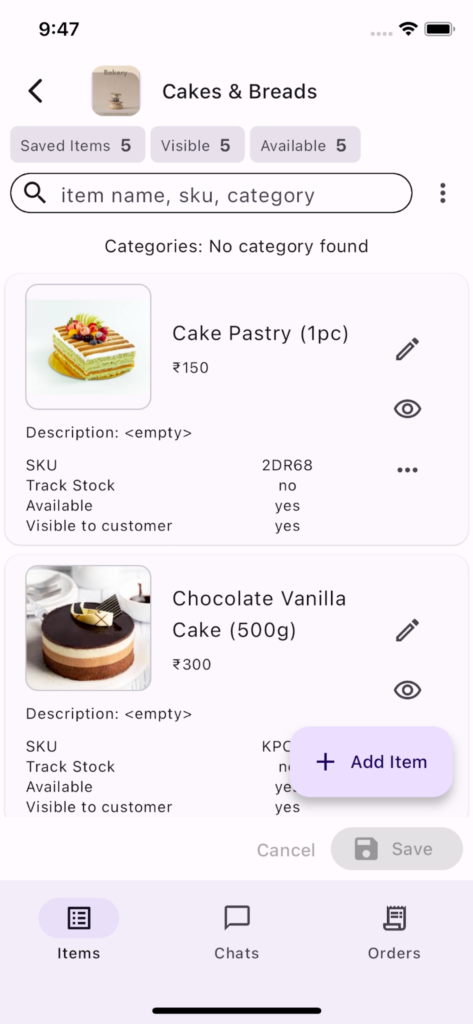
1. Add items to your link in the ‘Items’ tab. For each item
Select one or more item image(s). Although optional, item image provides improved customer experience.
Provide item name.
Enter the selling price in ₹ (Rupees).
Provide MRP and detailed description if applicable
For more advanced options like category, stock tracking, SKU, custom fields, import/export etc check Catalog & Inventory Management
2. Click on ‘Save’ once you have added all the items. You will be requested for permission to enable notifications. Enable notifications if you wish to see order and message notifications from customers.
5. Get Orders
Test
You can click on link – share option in the drop down menu in top right corner to see your link (https://psq.link/<link_name>)
You can use your link to place a test order and experience your store/booking link/service link as a customer.
Use the link to test the following customer functions:
Place an order
Make payment
Send message
Use the app to test the following Link owner functions:
Update order status
Update payment for an order (not required if payment gateway is used)
Share
To get orders share your link with your customers. You can click on share option in the drop down menu in top right corner to share your link (https://psq.link/<link_name>) with your customers.
You can share your link on social media apps like Whatsapp, Instagram, Facebook etc.
Customers can click on the link to see the items and send you a message or place order, they don’t need to download any app.
💡 Pro Tip: Before sharing the link ensure that is the final link you wish to use. Although you can change the link, old link will stop working & can be used by someone else.